> ## Documentation Index
> Fetch the complete documentation index at: https://docs.open-ci.io/llms.txt
> Use this file to discover all available pages before exploring further.
# OpenCI ダッシュボード(管理画面)
> OpenCI ダッシュボードの使い方
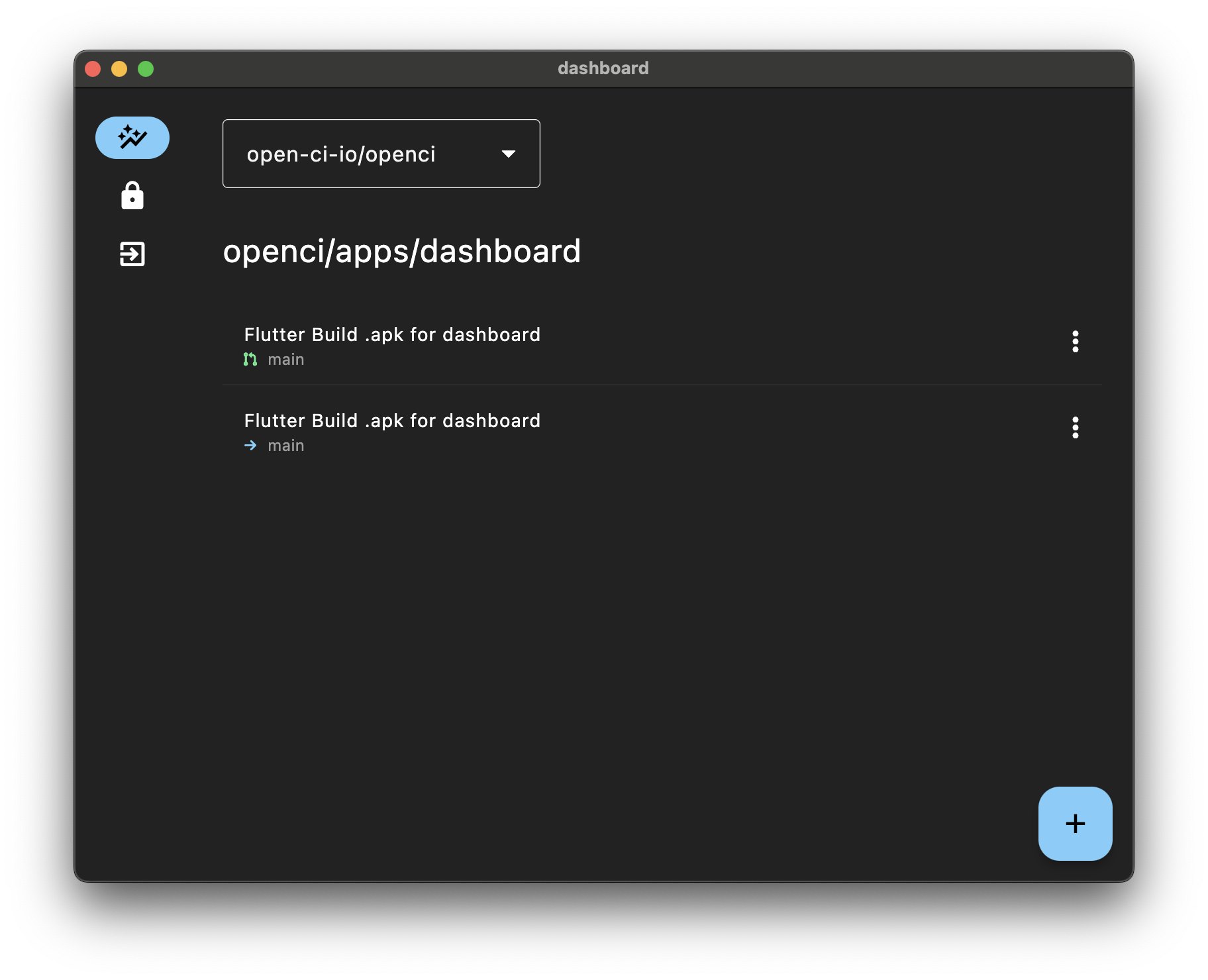 OpenCI ダッシュボードは、OpenCIの各種操作を行うことができます。対応プラットフォームはwebおよびmacOSです。
機能に違いはありませんので、お好きな方をお使いください。macOSの方が速度が速いですが、インストールが必要です。webの方は、ブラウザでアクセスするだけです。
webのリンクは、[https://dashboard.open-ci.io/](https://dashboard.open-ci.io/) です。
macOSの方は、[https://github.com/open-ci-io/openci/releases/download/v0.3.2/openci\_v0.3.2.dmg](https://github.com/open-ci-io/openci/releases/download/v0.3.2/openci_v0.3.2.dmg) からdashboard.dmgをダウンロードしてください。
# セルフホスティングしている場合
OpenCIはセルフホスティングが可能です。Firebaseを使用するため、事前にFirebaseプロジェクトの作成が必要です。
## GoogleService-Info.plistの設定
OpenCI ダッシュボードは、GoogleService-Info.plistを使用してFirebaseの認証を行います。
Firebaseのプロジェクトに、macOS用のアプリを追加してください。bundleIDは`io.openci.dashboard.ios`です。
macOS用のアプリを追加したら、GoogleService-Info.plistをダウンロードしてください。
## ダッシュボードの設定
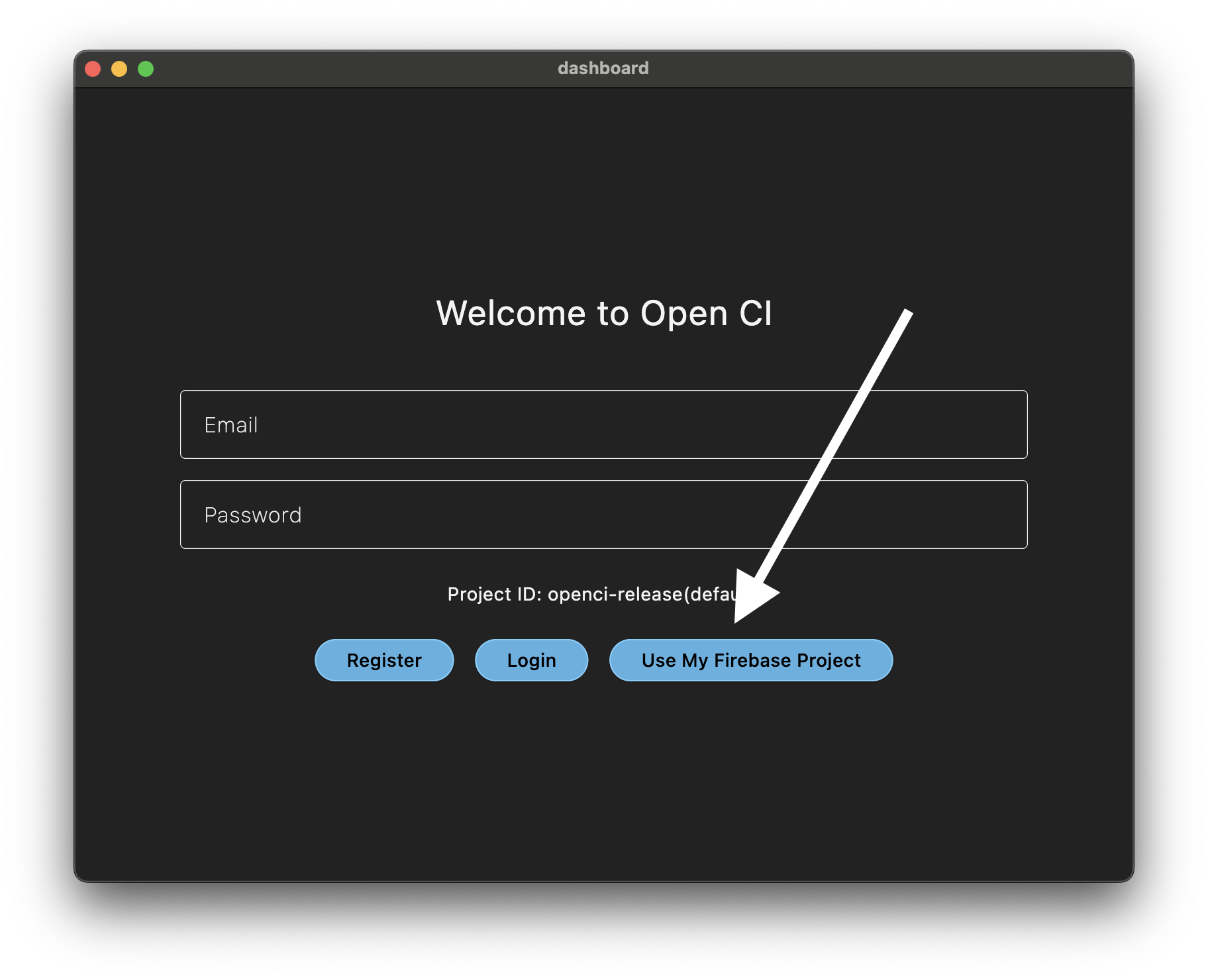
OpenCI ダッシュボードを起動したら、GoogleService-Info.plistを設定してください。
OpenCI ダッシュボードは、OpenCIの各種操作を行うことができます。対応プラットフォームはwebおよびmacOSです。
機能に違いはありませんので、お好きな方をお使いください。macOSの方が速度が速いですが、インストールが必要です。webの方は、ブラウザでアクセスするだけです。
webのリンクは、[https://dashboard.open-ci.io/](https://dashboard.open-ci.io/) です。
macOSの方は、[https://github.com/open-ci-io/openci/releases/download/v0.3.2/openci\_v0.3.2.dmg](https://github.com/open-ci-io/openci/releases/download/v0.3.2/openci_v0.3.2.dmg) からdashboard.dmgをダウンロードしてください。
# セルフホスティングしている場合
OpenCIはセルフホスティングが可能です。Firebaseを使用するため、事前にFirebaseプロジェクトの作成が必要です。
## GoogleService-Info.plistの設定
OpenCI ダッシュボードは、GoogleService-Info.plistを使用してFirebaseの認証を行います。
Firebaseのプロジェクトに、macOS用のアプリを追加してください。bundleIDは`io.openci.dashboard.ios`です。
macOS用のアプリを追加したら、GoogleService-Info.plistをダウンロードしてください。
## ダッシュボードの設定
OpenCI ダッシュボードを起動したら、GoogleService-Info.plistを設定してください。
 ## Firebaseの設定
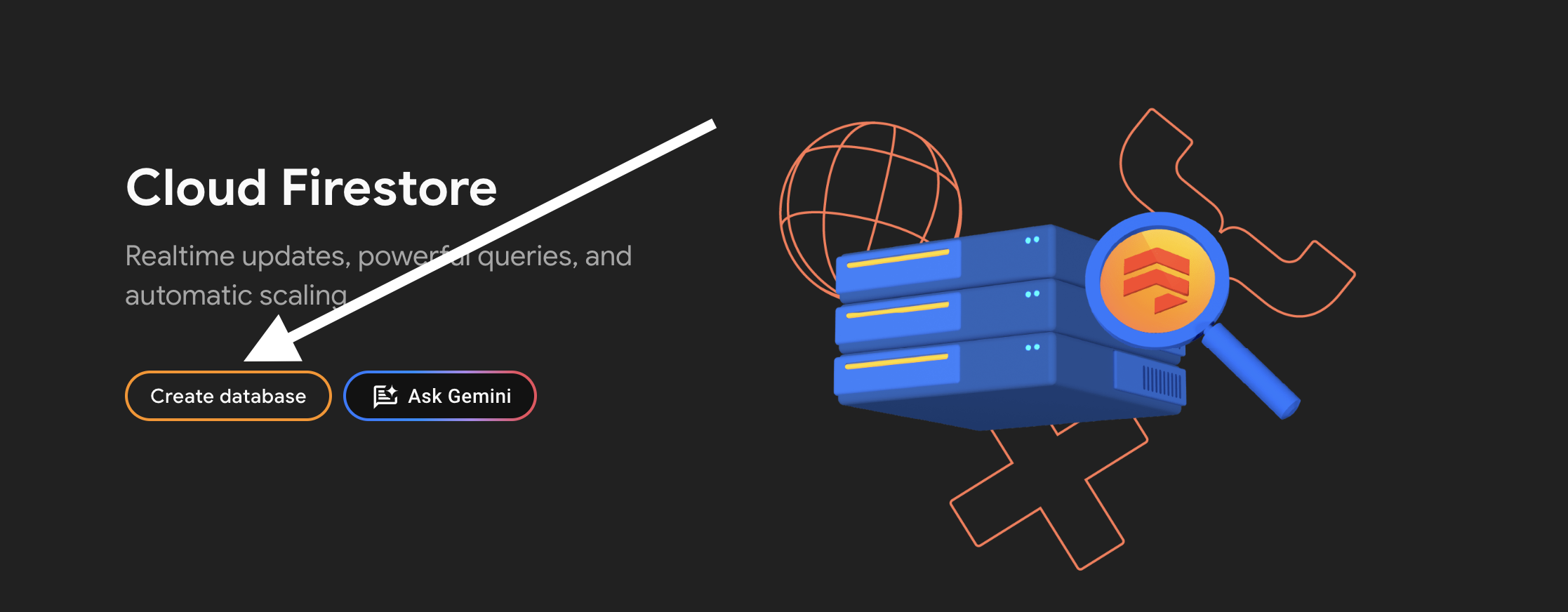
OpenCIはFirestore, Firebase Authを使用しています。Firestoreをプロビジョニングし、Firebase Authのメールアドレス認証を有効化してください。
### Firestoreのプロビジョニング
## Firebaseの設定
OpenCIはFirestore, Firebase Authを使用しています。Firestoreをプロビジョニングし、Firebase Authのメールアドレス認証を有効化してください。
### Firestoreのプロビジョニング
 ### Firebase Authのメールアドレス認証の有効化
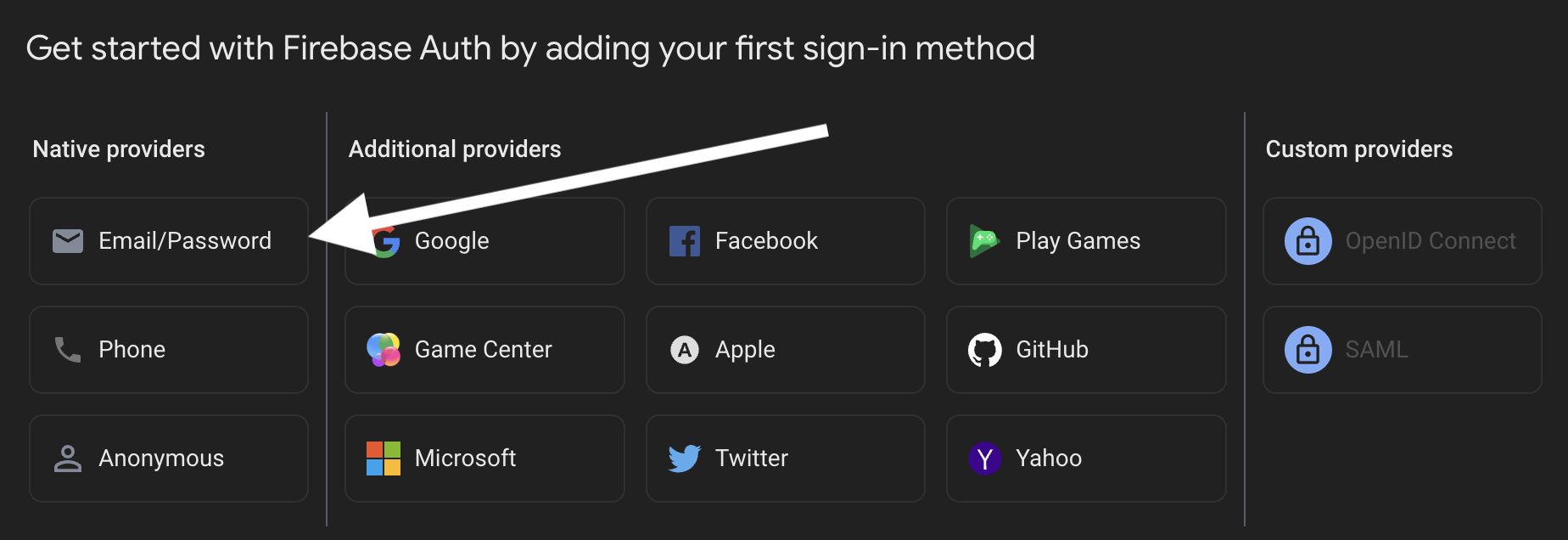
Firebase Authのメールアドレス認証を有効化します。
### Firebase Authのメールアドレス認証の有効化
Firebase Authのメールアドレス認証を有効化します。